How to Digitize Old Photos (Without Damaging Them)
The best ways to digitize old photos are a flatbed scanner for quality, a smartphone scanning app for speed, or a professional photo scanning service for large or fragile collections. Whatever method you choose, handle photos by the edges, work in a clean space, and scan at 300–600 DPI (600 or higher for archiving). For hundreds of photos or delicate prints, a professional service is faster, safer, and more consistent than scanning by hand.

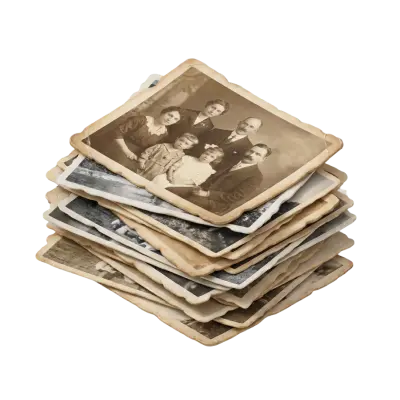
Printed photos fade, yellow, and stick together over time, and every time you handle a fragile print you risk damaging it further. Digitizing your photos preserves them exactly as they are today and makes them easy to organize, share, and back up. This guide covers every way to do it — and how to protect your originals in the process.
How to digitize old photos: 4 methods
There's no single right way to preserve printed memories — the best method depends on how many photos you have, your budget, and how much time you want to spend.
1. Flatbed scanner
A flatbed scanner delivers the best at-home quality. Scan prints at 300 DPI for same-size copies or 600+ DPI for archiving and enlargements, and most software can color-correct and remove dust as it scans. The trade-off is speed: scanning one photo at a time is slow for a big collection.
2. Smartphone scanning app
A photo-scanning app uses your phone's camera to capture prints quickly and for free. It's the fastest, cheapest option and good enough for casual sharing, but quality depends on your phone and lighting, and glare can be an issue. It's best for small batches, not archival preservation.
3. Professional photo scanning service
For large collections, fragile prints, or archival quality without the manual work, a professional photo scanning service is usually the best choice. You mail your photos and get back high-resolution digital files with color correction and dust removal, plus your originals.
With Capture, photo scanning starts at $19.99 for the first 50 photos, then $0.29 each after, delivered as sharp 12-megapixel JPEGs with color correction and infrared dust-and-scratch removal, typically in 2–3 weeks. For very large collections, a bulk photo scanning service keeps the per-photo cost low as volume rises.
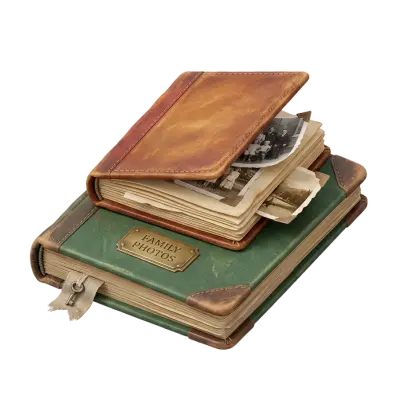
If your photos are still in albums, Capture's touchless album scanning captures them straight from the page — no need to peel prints loose and risk tearing them.
The best photo scanning services vary widely on quality, price, and turnaround, so it's worth comparing a few before you commit.
4. Digital camera
You can also photograph prints with a digital camera on a tripod under even, diffused lighting. Done carefully it's fast and can capture large or framed photos a scanner can't fit, but it takes practice to avoid glare, reflections, and distortion.
How to digitize photos without damaging them
Old prints are fragile, so how you handle them matters as much as how you scan them
Preserve them as soon as possible. Photos degrade fastest once fading and acid damage set in — digitize sooner rather than later, and prioritize the oldest or most damaged prints.
Choose a low-handling method. The less you touch a fragile photo, the safer it is. Touchless album scanning and professional services minimize handling entirely.
Hold photos by the edges. Fingerprints leave oils that damage the emulsion over time; handle prints only by their borders, and wear cotton gloves for delicate ones.
Work in a clean, controlled space. Scan away from food, drinks, and direct sunlight, on a clean, dry surface.
Remove dust gently. Use a soft, anti-static brush or microfiber cloth — never water or cleaning sprays — before scanning. Once digitized, it's easy to organize your photos into folders and back them up.
Digitizing old photos FAQs
What's the best way to digitize old photos?
For quality at home, a flatbed scanner at 600 DPI. For speed, a smartphone scanning app. For hundreds of photos or fragile prints, a professional service is the best balance of quality, safety, and effort.
How do I digitize old photos at home?
Scan them on a flatbed scanner at 300–600 DPI, or photograph them with a phone app or digital camera under even lighting. Handle prints by the edges, keep the area clean, and save archival copies as TIFF or high-quality JPEG.
Is it better to scan photos or use a service?
For a small batch, scanning yourself is fine. For hundreds of photos, or fragile and irreplaceable ones, a professional service is faster, safer, and often cheaper than a good scanner once you factor in your time.
What DPI should I scan old photos at?
Use at least 300 DPI for same-size copies and 600 DPI or higher if you want to archive, crop, or enlarge the images later.
Preserve your photos before they fade
However you choose to do it, the most important step is not waiting — every year, old prints fade and grow more fragile. Digitizing them locks in the images as they are today and makes them easy to share and back up. If you'd rather skip the setup and protect your originals, Capture can digitize your entire photo collection with color correction and dust removal, and return every print safely.
You May Also Like
What Resolution Should You Scan Old Photos At?
Scan standard prints at 300–600 DPI, and scan slides or negatives at 2000–4000 DPI — negatives and slides need far more resolution because the original image is physically much smaller than a print. Choose the higher end of each range for archival copies or anything you might want to enlarge later.
Why Old Photos Turn Yellow (And How to Stop and Fix It)
Old photos turn yellow because the dyes and paper chemicals used to make them break down over decades — mainly through dye coupler instability, acid migration from old albums, and exposure to light, heat, and humidity. Photos from the 1970s and 80s are hit hardest because of less stable dye formulas and cheaper consumer paper. Most yellow casts can be corrected with color-corrected scanning; physical damage like tears or severe fading cannot.

TIFF vs. JPEG: What’s The Difference?
TIFF files are uncompressed and preserve full image detail, making them preferred for archiving and professional printing. JPEG uses lossy compression that permanently discards image data with each save. For digitized photos intended for long-term preservation, TIFF is the better archival choice while JPEG works well for sharing.